Your catalog is finished. Now it has to reach people: a buyer who wants your line sheet in their inbox, a shop that orders by the case, followers scrolling past on Instagram, a print shop that wants a file with bleed. Each of them needs something a little different.
EasyCatalog gives every published catalog a PDF and up to three online flipbook links, each with its own job. This guide compares them, shows what your readers see, and helps you pick the right one for each audience.
Want every button explained? The sharing section of the grid editor guide covers each link, rule and setting in detail.
One catalog, four share links
Share links appear once you click Generate PDF catalog in the editor and the PDF is ready. Generating is what publishes the catalog. Until then, its card on the Catalogs page is a draft with no links.
A published card lists one row per link. Each of these rows has Copy link and Get QR. The flipbook rows also have Preview, which opens the page exactly as your readers will see it. The PDF row has Download instead.
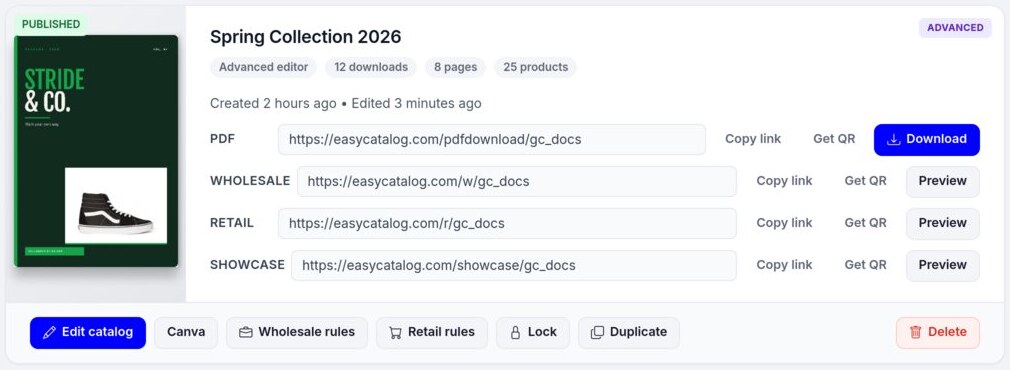
Here is how the four compare:
| Link | What people get | Best for | Where orders go |
|---|---|---|---|
| The catalog as a file to read, save or print | Email, print shops, archives | No ordering | |
| Showcase | A page-flip book to browse, with no cart | Social posts, newsletters, press, partners | No ordering |
| Wholesale | The flipbook with an order form: quantities per variant, a cart and an order request | Trade buyers, sales reps, B2B customers | The Orders page in EasyCatalog, plus an email to you |
| Retail | The flipbook with a cart that goes to your Shopify checkout | Shoppers and consumer newsletters | Shopify admin, as normal Shopify orders |
Without a Shopify store, the card has three links: PDF, Wholesale and Showcase. Retail needs a Shopify checkout to send shoppers to.
Anyone with a link can open it without an account, unless you add a password. More on that below.
The PDF: for email, print and archives
The PDF is the catalog as a file. It is what many buyers expect in an email, what a print shop asks for, and what you keep on record for each season. A few choices make it work better:
- Pick the quality for the job. In the Generate PDF catalog window, Standard (150 DPI) is right for screens, email and links. For print, choose High quality or Best quality (300 DPI), or Print professional when your print shop asks for CMYK.
- Send the link, not the attachment. Copy link on the PDF row gives you an easycatalog.com/pdfdownload/… address. It always opens the newest PDF, and nothing has to fit into an email attachment. Don't share the long file address your browser shows after the PDF opens: that one is replaced every time you generate.
- Add bleed for a print shop. Under Bleed, pick 3 mm or 5 mm, and tick Crop marks if they want them. The card then gets a separate Print row with the print file's link, Copy link and Print file. Send that file to the print shop. Your normal PDF and share links stay at the exact page size. The guide explains bleed and crop marks in more detail.
- Products are clickable. On Shopify stores, product photos, titles and Buy buttons in the PDF open that product in your store.
The trade-off: a PDF is a snapshot. Once someone downloads it, they keep that version, even after you update the catalog. The card's downloads number counts each time the PDF link is opened, but nothing tells you who opened it.
Thinking about a printed run as well? We compare the two in PDF catalogs vs printed catalogs.
Showcase: a flipbook for browsing
The Showcase link opens your catalog as a page-flip book in the browser. Readers turn pages, jump between them, zoom and search. There is no cart and no order form.
It is the link for people who browse first and buy later: social posts, newsletters, press and retail partners, or a button on your own website. When you post it on social media, your cover is the preview image. The page is hidden from search engines, so it won't compete with your store in search results.
Choose what a product click does with Showcase options on the catalog card:
- Open the product page in my store, the default on Shopify stores.
- Show a product details popup with the details you tick, such as title, price, description, SKU and stock status. On Shopify stores you can add a View in store button.
- Nothing, for a pure look-book.
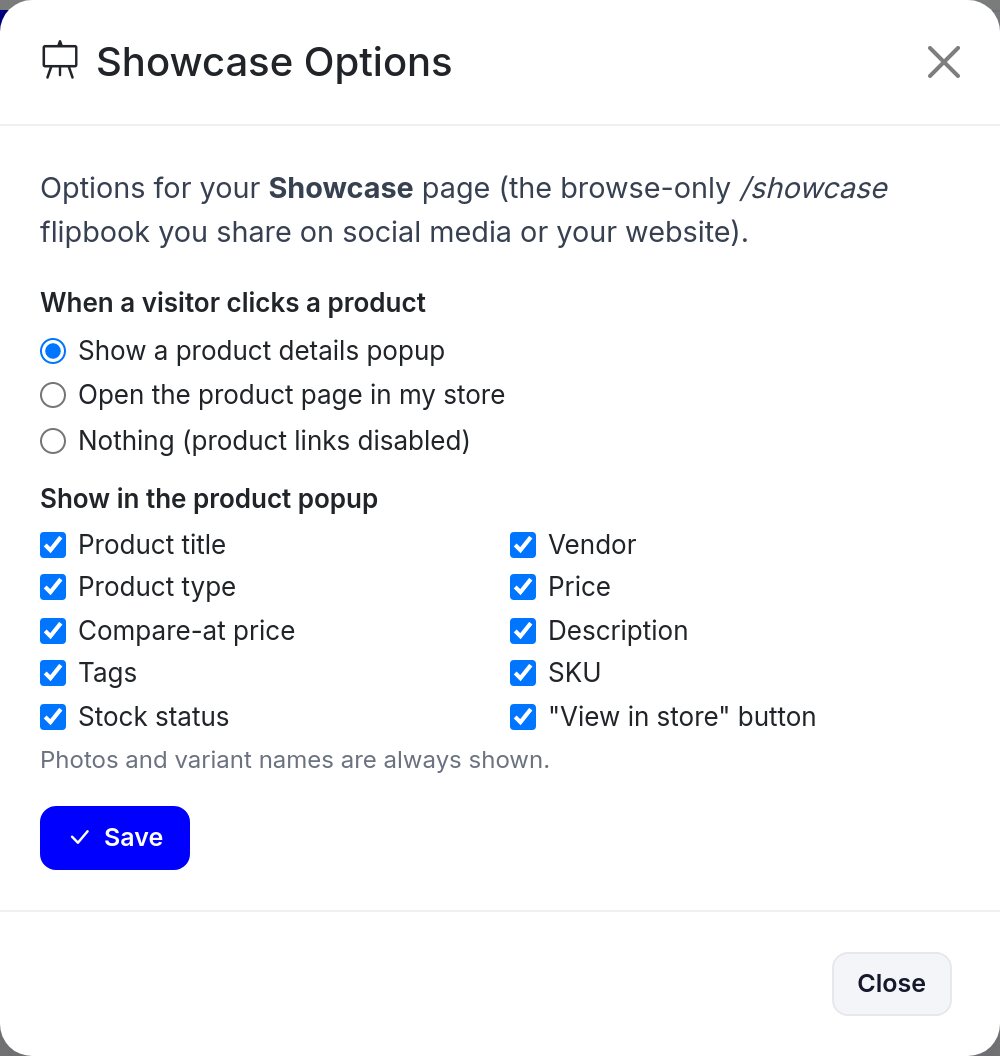
Without a Shopify store there is no store page to open, so product clicks do nothing until you choose the popup.
Want a version without prices for press or partners? All links show the same pages. Duplicate the catalog, untick the price fields in Product fields in the copy, generate it and share the copy's Showcase link.
On Shopify stores, Flipbook settings in the left menu set the look of every flipbook at once: page background, page-turn style, toolbar and more. Readers can't download the PDF from the flipbook toolbar unless you turn on Allow PDF download there.
Wholesale: an order form for trade buyers
The Wholesale link is the same flipbook with ordering built in. A buyer clicks a product, sets a quantity for each variant (each size or color) and clicks Done to add them to the cart. At checkout they enter their name, company and email, and click Confirm & Submit.
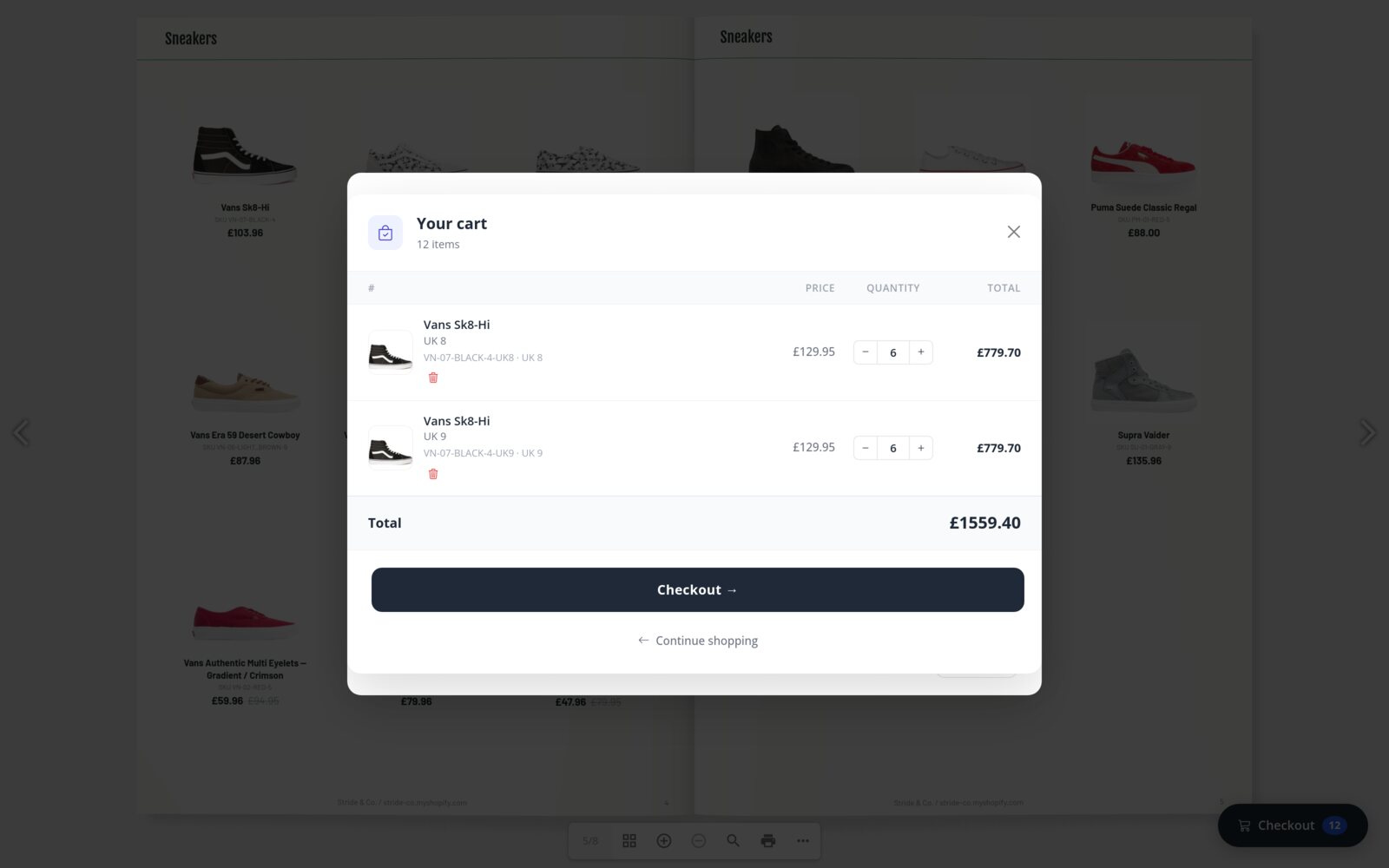
No payment is taken. The order is a request: it lands on the Orders page in EasyCatalog, you get an email, and the buyer gets a confirmation. You then arrange payment and delivery. On a Shopify store, Create Draft Order on the order sends it to Shopify as a draft order. Shopify fills in its own current prices there, so check them before you send the invoice.
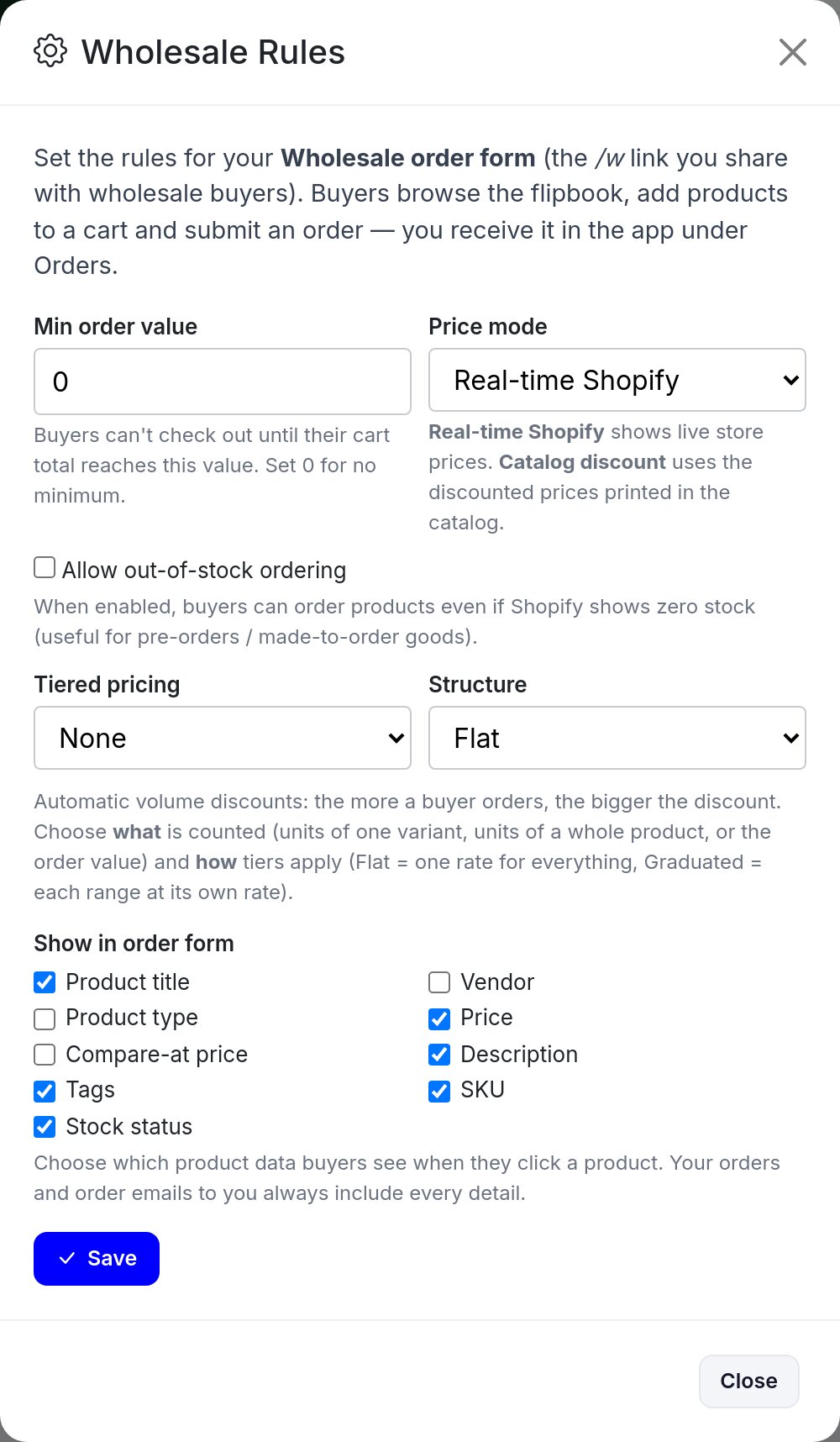
Wholesale rules on the catalog card control the form:
- Min order value: buyers can't check out until their cart reaches it.
- Price mode: Real-time Shopify shows your live store prices. Catalog discount uses the discounted prices printed in the catalog. Without Shopify, the first option is Current inventory prices.
- Allow out-of-stock ordering, for pre-orders and made-to-order goods.
- Tiered pricing: automatic volume discounts by variant quantity, product quantity or order value.
- Show in order form: the product details buyers see. Untick Price for a "prices on request" form. Your own copy of each order always has every detail.
Use it for trade buyers, sales reps and B2B customers who reorder each season. The Wholesale rules guide covers every option, and how to build a wholesale order form that converts covers what buyers expect from one.
Retail: a shoppable flipbook for Shopify stores
On a Shopify store, the Retail link shows the same flipbook with a cart that hands over to your Shopify checkout. Shoppers pick variants and quantities, click Checkout →, and pay in your store as usual.
Retail orders are normal Shopify orders. They appear in Shopify admin under Orders and use Shopify's own emails, and Shopify charges your current store prices.
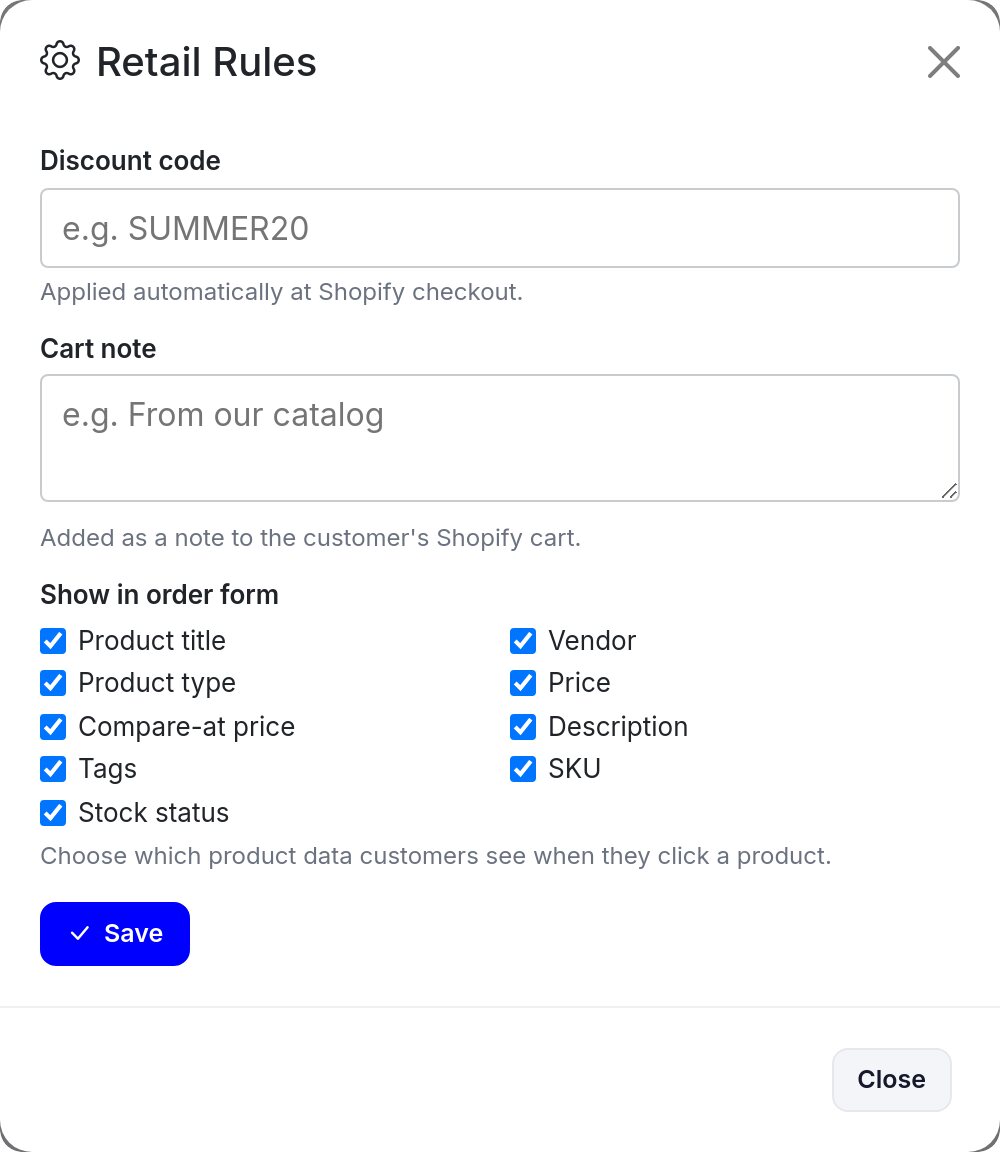
Retail rules on the card add three things:
- A Discount code that is applied at checkout automatically. Create the code in Shopify first.
- A Cart note, such as "From our catalog", so you can spot catalog orders in Shopify.
- Show in order form: the product details shoppers see when they click a product.
Send it wherever a reader should be able to buy on the spot: a seasonal lookbook in your newsletter, a gift guide, the link in your social bio. Minimum orders and volume discounts exist only on the Wholesale link.
Keep it private with a password
Some catalogs aren't for everyone: trade prices, a preview of next season, a range for one key account. Click Lock on the card, type a password and click Save. The button now reads Locked.
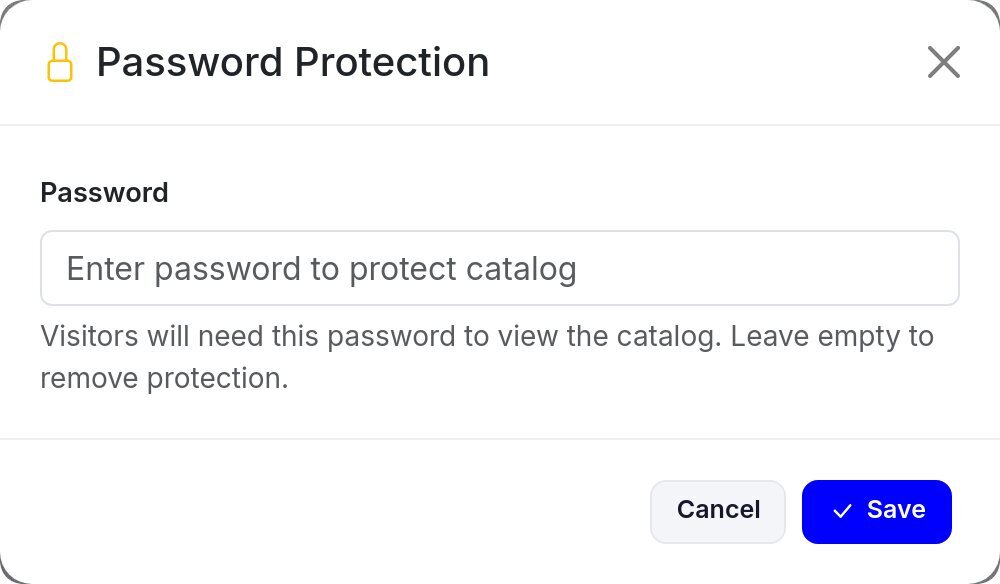
From then on, every link of that catalog opens a password page first: PDF, Showcase, Wholesale and Retail. Once a visitor unlocks it, their browser session opens all of them without asking again. To remove the password, open Lock, empty the field and save.
Good to know
- It's one password per catalog. For different buyer groups, duplicate the catalog and lock each copy with its own password. A copy starts with the original's password.
- It works straight away, with no new PDF.
- It protects the EasyCatalog links only. A PDF someone already downloaded stays on their computer, and the long file address the browser shows after the PDF opens is not protected, so share the PDF row's link instead.
- There is no unpublish switch. Lock is how you take a catalog offline without deleting it.
QR codes, your website and social posts
Each share link row has Get QR. It opens a QR code image of that link in a new tab, ready to save or print. Use it on a trade-show stand, packaging, a flyer or a shop counter. For a large print, paste the copied link into any QR code generator.
You can also print a QR code in the catalog itself. In the editor, open Custom elements in the left rail, pick the QR code tool, paste a link and click Add QR code. A code on the back cover that opens the Wholesale link turns a printed catalog into an order form. Generate the PDF once so the link exists, add the code, then generate again.
On Shopify stores, product cards can carry their own QR code too. Tick QR code in Product fields, and each code opens that product in your store.
On your website or store, add a button or menu item that opens the Showcase link for browsing, or the Wholesale or Retail link for ordering. On a Shopify store there is a shortcut: Embed in page on the catalog card creates a page in your online store that shows the catalog as its Retail, Showcase or Wholesale link. On social media, the Showcase link is the natural fit, with your cover as the preview.
Update the catalog, keep the links
Share links never change. When you edit the catalog and generate the PDF again, every link, and every QR code you already printed, shows the new version as soon as it's ready. Renaming the catalog doesn't change them either, so there is nothing to send twice.
Changes reach your readers in two ways:
- Right away: Wholesale rules, Retail rules, Showcase options, the Lock password and Flipbook settings.
- After a new PDF: anything on the pages, such as products, prices, discounts and layout. Click Edit catalog, make the change, save, and click Generate PDF catalog again.
After you move, add or remove products, or change prices, always generate again so the order forms match the pages buyers see. Only the newest PDF is kept, so download last season's file first if you want to archive it.
Which link to send: a quick guide
- A buyer asks for your line sheetThe Wholesale link, so they can order from it, plus the PDF link for their files.
- Sales reps visiting storesThe Wholesale link on a tablet, so the buyer can place the order on the spot.
- A trade showThe Wholesale link's QR code on your stand and on a printed catalog.
- A newsletter to shoppersThe Retail link on a Shopify store, or Showcase to send readers to your store pages.
- Social media, press and partnersThe Showcase link.
- A print shopThe PDF at High quality, Best quality or Print professional. If they ask for bleed, send the Print file.
- One key account or a private previewAny link, locked with a password.
Before you send anything, run through this:
- Preview it. Open each link with Preview and look through it as a reader would.
- Remember that test orders are real. An order you submit from Preview lands on the Orders page and sends the emails. Delete it from Orders afterwards.
- Check the price mode. Make sure Wholesale rules show buyers the prices you mean them to pay.
- Send passwords separately. If the catalog is locked, share the password in a different message from the link.
Still building the catalog? The grid editor step by step goes from template to PDF. Stuck on a setting? Click Need help? in the bar under the page to ask Fin, the AI assistant. The guide explains how Fin works.
Share your catalog your way
Turn your products into a catalog, then send it as a PDF, a flipbook or an order form.