

For many of your customers, ordering already happens in a chat. A boutique owner sends you a photo and asks for six of those; a trade buyer types out a list on the way back from a fair. If your catalog only ends in "email us your order", some of those orders arrive late, half typed, or not at all.
EasyCatalog can now hand the order straight to WhatsApp. Buyers still browse your catalog and fill their cart in the order form, then one tap opens WhatsApp with the order typed out and addressed to your number. This guide shows how to switch it on, what buyers see, and what lands on your side.
Two places to order on WhatsApp
WhatsApp ordering works on two of a catalog's share links, and you switch it on for each one separately:
| Link | What the buyer does | What you get |
|---|---|---|
| Wholesale | Fills a cart in the order form, enters their details and taps Send order on WhatsApp | The order, typed out in a WhatsApp message. By default it is also saved under Orders and emailed, like any other order |
| Showcase | Opens a product in the browse-only flipbook, picks a variant and a quantity, and taps Order on WhatsApp | A WhatsApp message naming the product, variant, SKU and quantity, with a link back to the catalog |
Both work for Shopify stores and for EasyCatalog accounts without Shopify. If you are new to the links themselves, how to share a product catalog explains what each one is for.
Switch it on for your order form
WhatsApp ordering lives in the same window as the rest of your order form's settings:
- Open your Catalogs page and find the published catalog.
- Click Wholesale rules on its card.
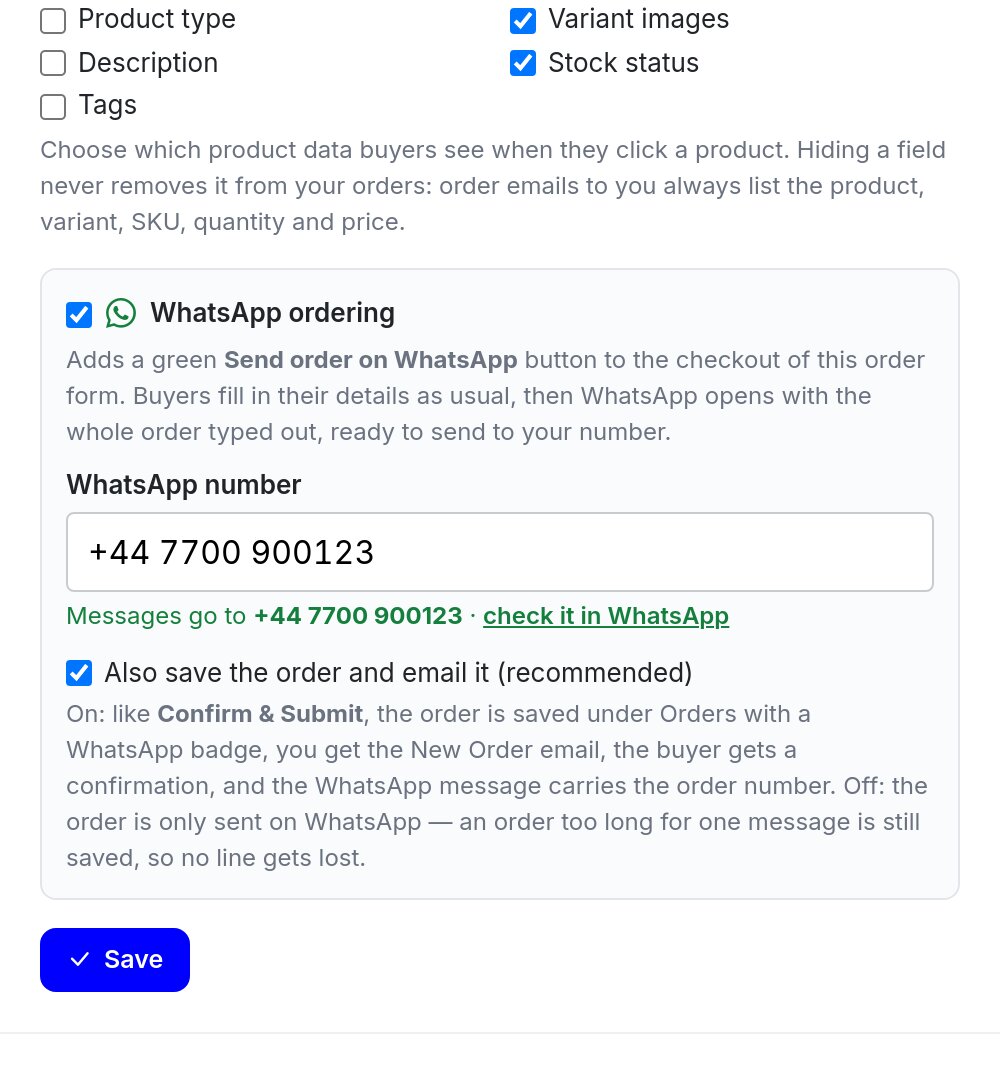
- At the bottom of the window, tick WhatsApp ordering.
- Type the number that should receive the orders under WhatsApp number, starting with your country code, for example +44 7700 900123.
- Leave Also save the order and email it (recommended) ticked, and click Save.
A few details make the number easy to get right:
- Country code first. WhatsApp needs the full international number. You can type it with spaces, brackets or dashes, and with a leading + or 00. A number that starts with 0, which is how most national numbers are written, is flagged before you can save, because WhatsApp would not know which country it belongs to.
- Check it. Under the field, the window shows the number as buyers will reach it, next to a check it in WhatsApp link. Click it to open a chat with that number and make sure it is the right one.
- Type it once. When you tick WhatsApp ordering on another catalog, the number you saved most recently is filled in for you.
Each catalog keeps its own setting, so a trade catalog can send orders to your sales team's number while another one goes to a different number, or does not use WhatsApp at all.
What your buyers see
Nothing changes until the last step. Buyers flip through the catalog, set quantities in the product windows and open the cart as before. At checkout, above the familiar Confirm & Submit button, they now find a green Send order on WhatsApp button with a short note: the order is saved and emailed, then WhatsApp opens with it ready to send.
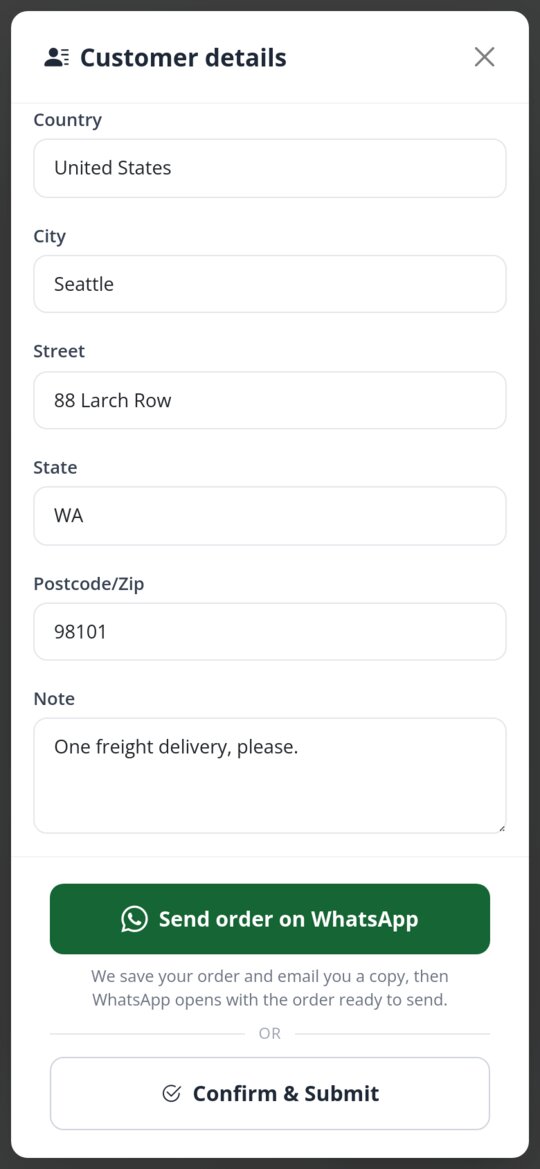
The details form works exactly as before: first name, last name, company and email are required, and the button will not continue without them. Then WhatsApp opens in a chat with you, with a message like this one already typed in. On a phone that is the WhatsApp app, though some phones first show a WhatsApp page with a button to open it. On a computer, WhatsApp may ask whether to use its desktop app or WhatsApp Web.
WhatsApp shows the words between asterisks in bold. The buyer only has to tap Send. A few things are handled for them:
- Your settings still apply. The message lists SKUs and prices only when your order form shows them, so a catalog with hidden prices sends a message without amounts. A minimum order value and Shopify B2B quantity rules are checked again before anything is sent, so the button cannot get around them.
- Long orders stay readable. A WhatsApp link must stay short to open reliably on every phone and computer. When an order has more lines than fit, the message lists the first ones, followed by a line such as "...and 12 more products (full order #7731 sent by email)". The full order is in the order email and under Orders.
- No dead ends. If the buyer's browser blocks the new window, the page itself goes on to WhatsApp. The thank-you page also keeps an Open WhatsApp to send your order button, in case WhatsApp was closed by mistake.

What lands on your side
With Also save the order and email it ticked, the WhatsApp button does everything Confirm & Submit does first. The order is saved under Orders, you get the New Order email, and the buyer gets their confirmation email. The WhatsApp message carries the same order number, so the chat and the order are easy to match.
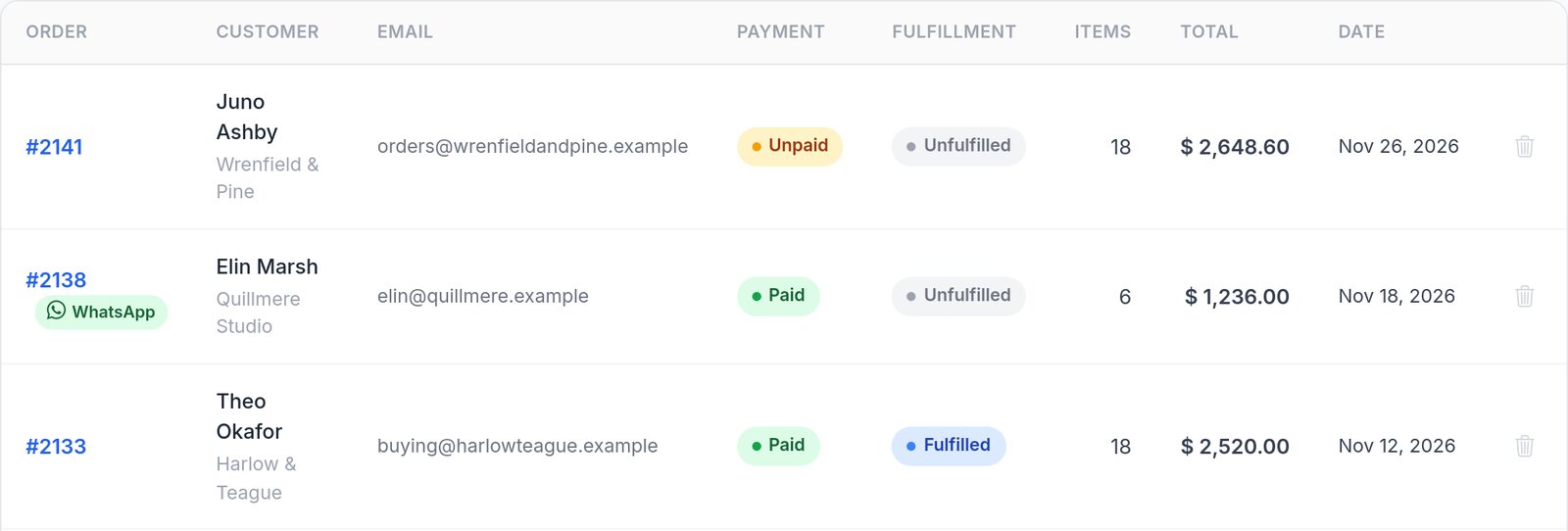
Orders placed with the button carry a green WhatsApp badge in the list and Via WhatsApp on the order page. The badge tells you the buyer used the button. Whether they also tapped Send, you will see in WhatsApp. Everything else stays as you know it: totals, search, filters and marking the order paid or fulfilled.
If you untick the option, the button only opens WhatsApp and nothing is saved or emailed, so the message has no order number. One exception keeps orders whole: when a cart is too long for a single WhatsApp message, it is saved and emailed anyway, and the message points to it.
Order on WhatsApp from the Showcase
The Showcase is the browse-only flipbook you share on social media, in newsletters and on your website. It has no cart, which makes WhatsApp a natural next step for a shopper who sees something they want. For stores without a Shopify checkout, it is a simple way to take retail orders.
- On the catalog's card, click Showcase options.
- Tick WhatsApp ordering and enter your number. This also selects Show a product details popup, because the button lives in that popup.
- Click Save.
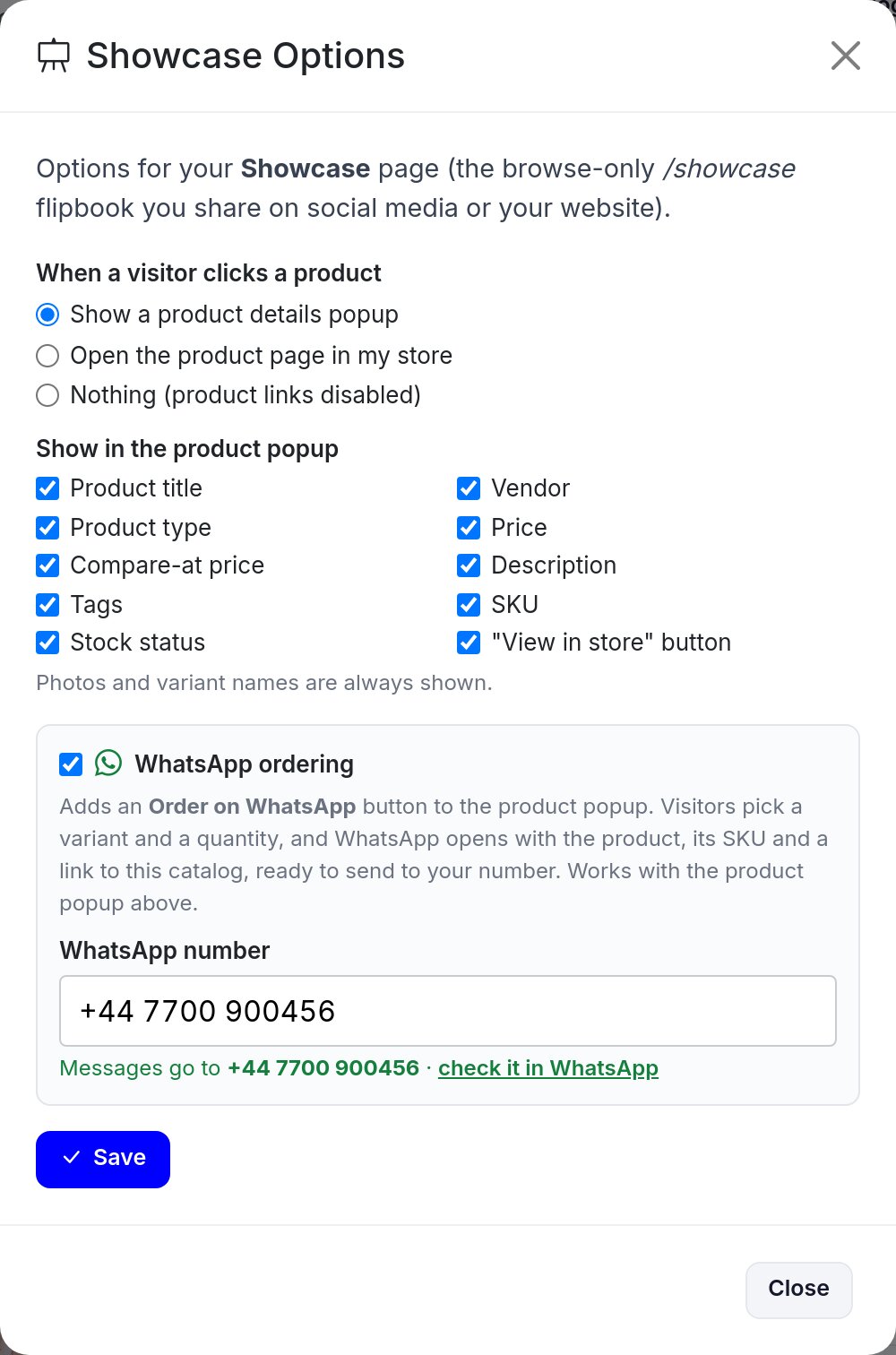
When a visitor clicks a product in the flipbook, the popup now has a quantity field and an Order on WhatsApp button. If the product has variants, they tap the one they want; the variant the catalog page links to, or else the first one, is selected to start with. The message lists the product and variant, the SKU when the popup shows SKUs, the quantity and a link back to the catalog, and leaves out anything you hide in the popup.
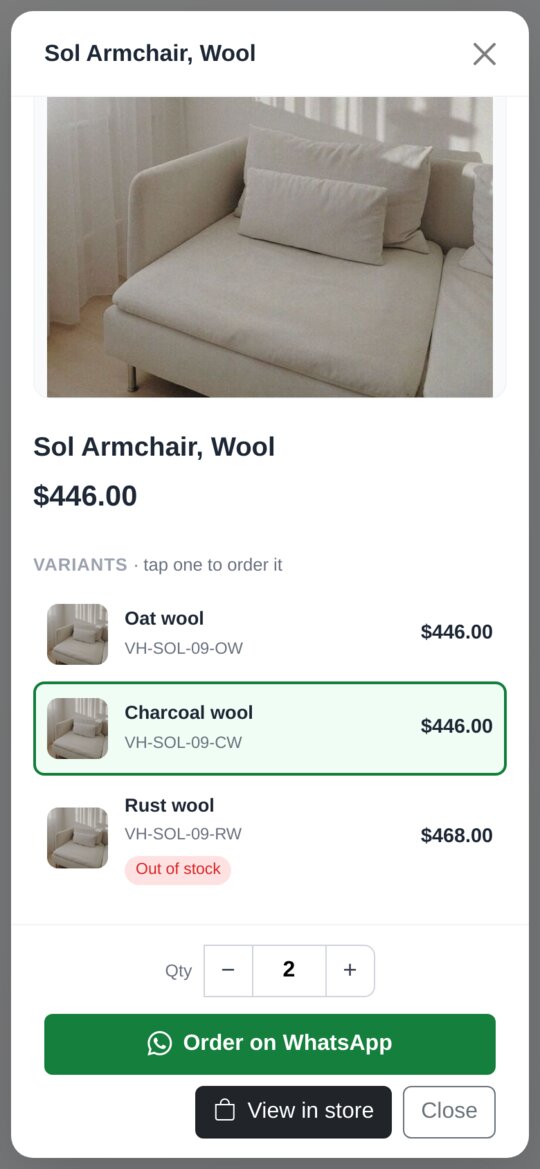
Showcase messages start a conversation rather than place an order: nothing is saved under Orders. You agree on price, delivery and payment in the chat.
Tips for taking orders on WhatsApp
- Use a business number. The WhatsApp Business app lets you add a greeting, an away message and quick replies, so buyers hear from you even after hours.
- Answer with the order number. It is at the top of every saved order's message. Confirm stock, delivery and payment in the chat, then mark the order paid or fulfilled under Orders.
- Put the link where people chat. Every share link has Copy link and Get QR. Paste the Wholesale link into a broadcast or status, and print the QR code on your price list or trade-show stand.
- Keep trade prices private. Lock the catalog with a password, so only buyers who have it can open the catalog and order.
Want more on the order form itself? Read how to build a wholesale order form that converts.
Questions about WhatsApp ordering
Do I need the WhatsApp Business API?
No. The buttons use WhatsApp's standard click-to-chat links, so there is no API account to set up and nothing to connect: the buyer sends the message from their own WhatsApp to your number. Any number with WhatsApp works, in the regular app or the WhatsApp Business app.
What if a buyer doesn't use WhatsApp?
Confirm & Submit stays on the order form, so they can send the order the usual way. And with Also save the order and email it ticked, an order sent with the WhatsApp button is saved and emailed before WhatsApp opens, so you have it even if the buyer never taps Send.
Does the message include prices?
Only when your order form shows prices. With prices hidden in Wholesale rules, the message lists products, variants and quantities without amounts. Messages from the Showcase never include prices.
Can each catalog use a different number?
Yes. Every catalog has its own setting, and its Wholesale and Showcase links each take their own number, so a trade catalog can go to your sales team while a Showcase goes to your shop.
Does it work without a Shopify store?
Yes. Accounts without Shopify get the same WhatsApp ordering box in Wholesale rules and Showcase options, and their order form uses the products and prices from their Inventory.
Take orders where your buyers already are
Turn your products into a catalog with a built-in order form, then let buyers send their orders on WhatsApp.