

Shopify gives every product the same basic fields: title, price, SKU, vendor. The details a wholesale buyer actually asks about, such as how many units come in a case, what the product is made of or where it was made, usually live somewhere else: in metafields.
This guide explains what metafields are, which ones are worth printing in a wholesale catalog, and how to show them on your product cards in EasyCatalog. It also covers a second job a metafield can do: supplying your wholesale prices.
Want every setting explained? The product fields section of the grid editor guide covers each card field, and the Discount & Tax section covers prices.
What metafields are
Metafields are custom fields you add to your products in Shopify. Each one has a namespace and a key, such as custom.material, and a type: text, number, money, a list, a measurement and so on. You set them up in your Shopify admin under Settings → Metafields and metaobjects, then fill them in on each product.
There are two kinds:
- Product metafields hold one value for the whole product, such as the material or the country of origin.
- Variant metafields hold a value for each variant, such as a pack size or a price per size.
EasyCatalog builds the catalog from your store data, so anything you keep in metafields can print on the pages without retyping.
Metafields wholesale buyers look for
A wholesale buyer is filling in an order and needs facts. These metafields earn their place on a line sheet:
- Case pack or units per cartonBuyers order by the case, so "Case pack: 12" belongs next to the price.
- Minimum order quantitySaves a round of emails when a buyer asks for two of something you sell by the dozen.
- Materials and composition"Canvas and suede upper, rubber sole" answers the first question a store asks.
- SpecificationsDimensions, weight, capacity, wattage or a fit note.
- Country of originImporters and retailers often need it for labelling and customs.
- Care instructions and certificationsOrganic, vegan, FSC or machine washable.
- RRP or MSRPThe recommended retail price, so a retailer can see their margin at a glance.
- Wholesale priceThe price trade buyers pay. This one can do more than print a line: see using a metafield for wholesale prices below.
One tip before you start: keep values short and consistent. "12 per case" on one product and "Case of twelve" on the next looks untidy on a line sheet. A number metafield with a clear name prints cleanly as Case pack: 12.
The label in front of each value is the name from your Shopify metafield definition. A metafield without a definition gets its key tidied up instead: units_per_carton prints as "Units per carton". You can rename any label in the catalog, as shown below.
Show metafields on your product cards
Metafields come from Shopify, so this works for Shopify stores. Open your catalog in the editor, go to a product page, and follow these steps:
- Click Product fields in the left rail.
- In the Apply changes to row at the top, click Whole catalog, so every page gets the same fields.
- Click Metafields in the list. It switches on, and the Select product metafields dialog opens.
- Tick the metafields you want to print. Select All / Deselect All ticks or clears the whole list.
- Click Apply.
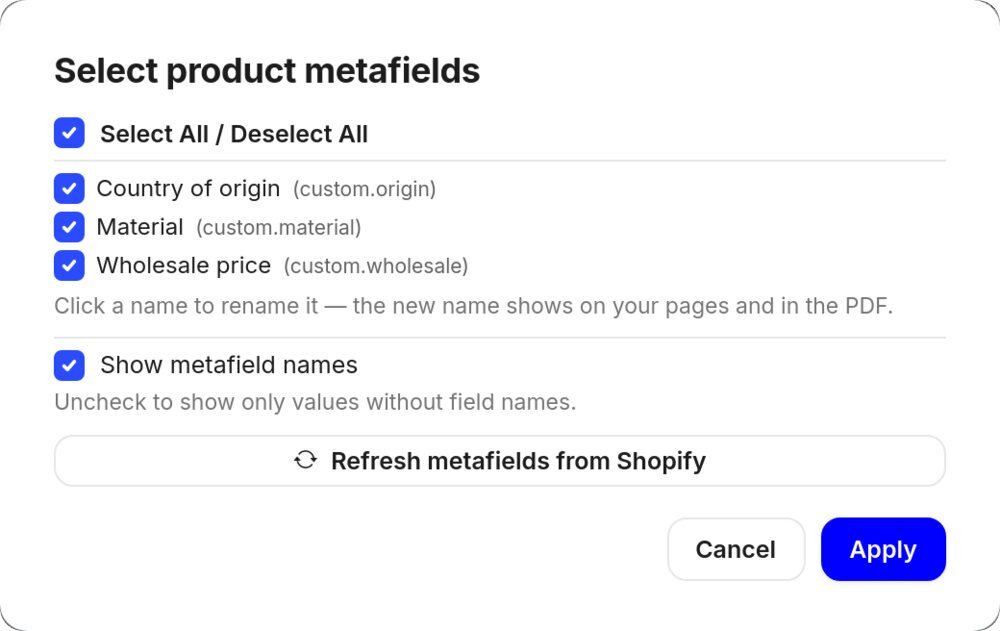
custom.material-style keys show only here, never on the cards or in the PDF.The dialog lists your store's metafield definitions, plus any metafields without a definition that it finds on this catalog's products. Each one you tick prints on its own line as Name: value, for example Material: Organic cotton.
Two more options in the same dialog:
- Rename a label. Click a name, type a new one, such as "Origin" or a label in your buyers' language, and press Enter. The × next to it puts the original back. Renames change the catalog only, never Shopify.
- Show only the values. Untick Show metafield names when the value speaks for itself, such as "Made in Portugal".
To move the metafields up or down the card, drag the Metafields row in Product fields by its handle. The lines inside the block follow the order Shopify returns them in, not the order you tick them.
Changing your choice later. Once Metafields is on, clicking its row in Product fields switches it off. To pick different metafields, click the metafield text on any card instead. Card style appears in the left rail with that field's settings. Click Choose metafields… there. Switched it off by mistake? Click the row again, and it comes back with your earlier choice.
Load every value before you generate
The editor reads metafield values from Shopify the first time a card with metafields appears on the canvas, a few products at a time. Until the values arrive, the card says Loading product data….
That matters for the PDF. Generating the PDF does not wait for pages you haven't opened since you turned the field on, and those cards print without their metafields. So before you generate:
- Click the metafield text on any card, then Choose metafields….
- At the bottom of the dialog, click Refresh metafields from Shopify. It reads the values for every product in the catalog.
- Wait for the message Metafields refreshed from Shopify. Large catalogs take a little while.
- Close the dialog and click Save, then Generate PDF catalog.
The values are saved with the catalog, so they're there the next time you open it. Repeat the refresh whenever you change values in Shopify.
Style them, swap in icons, and handle variants
By default, metafields print in small grey text, so they support the title and price instead of competing with them. To change that, click the metafield text on a card. The Card style panel shows its font, size, color, alignment and case, and Max lines: up to six lines show, and extra lines are cut off. Pick a scope in Apply changes to first: This product, This page or Whole catalog.
The same panel has an Icons section. It lists the metafield values in your catalog, and you can upload an image for any of them: a leaf for "Organic", a flag for "Italy", a certification badge. The icon replaces that text on every page and in the PDF. Tick Show the text next to the icon to keep both. Icons match values, not names, and you can set their size.
Most metafield types print as you'd expect: text and numbers as stored, lists separated by commas, rich text as plain text, money with its currency, and measurements with their unit, such as 12 cm. Files, images and references to other products print as a Shopify ID, so use a text metafield for anything buyers should read. A single value is cut after 300 characters.
Variant metafields are a separate field in Product fields, with their own Select variant metafields dialog that works the same way. One thing to know: they are read from the product's first variant. Every card of that product shows those values, even a card for another variant. For a value that differs per variant, like a pack price, the discount price mapping in the next section reads each card's own variant.
Use a metafield for wholesale prices
Many wholesalers keep a trade price for each product in a metafield, such as custom.wholesale. EasyCatalog can print that value as the card's Discount price, so your catalog shows exact wholesale prices instead of a flat percentage off retail.
- Click Discount & Tax in the left rail.
- Below the Apply to buttons, open the Metafield dropdown. While the feature is off, it reads "Not used — manual value / Discount & tax".
- Pick your metafield under Product metafields, or under Variant metafields if each variant has its own price.
- The values are read for every product at once. A message says how many products were updated, and how many had no value.
- Keep Discount price ticked in Product fields, then click Save.
How metafield prices behave
- The mapping always covers the whole catalog.
- It accepts money and number metafields, or text that holds a number, such as "$ 12.50" or "1.299,00". For a list, the first entry counts. Empty, zero or non-numeric values count as no value, and that product keeps its own price.
- The value is used as an amount in the catalog's currency. Nothing is converted.
- A variant metafield is read from the variant each card represents, or the first variant for products added whole. To give every variant its own card, choose Each variant as a separate product under Variant display when you use Add products → Bulk add.
- A Discount & Tax discount wins. If you also applied a percentage, the cards show that instead. Set the discount to 0, Remove tax (%) to 0 and Multiply price by to 1, then click the same Apply to button again.
- Choosing Not used switches the mapping off and brings back the prices products had before.
Show retail and wholesale side by side. In Product fields, tick Price as well. Price prints your store price, and Discount price prints the metafield price. Click each price on a card and give it a label with Text before, such as "RRP" and "Wholesale". Both prices show a struck-through compare-at price by default, so untick Show compare-at price (strikethrough) on one of them.
Already keep the RRP in its own metafield? Then the simplest route is the text one: tick Metafields, pick only that metafield and rename it "RRP".
To set the currency symbol, its position, the number format (such as 1,234.56 or 1.234,56) and cents or rounded prices for every price field at once, open Theme in the left rail and its Prices tab. None of this changes the prices in your Shopify store.
Carry metafield prices to the order form
Once the PDF is generated, your catalog gets a Wholesale link: the flipbook with an order form built in. By default, that order form uses your live store prices. To make buyers pay the wholesale prices printed in the catalog, including your metafield prices, open Wholesale rules on the catalog's card, set Price mode to Catalog discount and click Save.
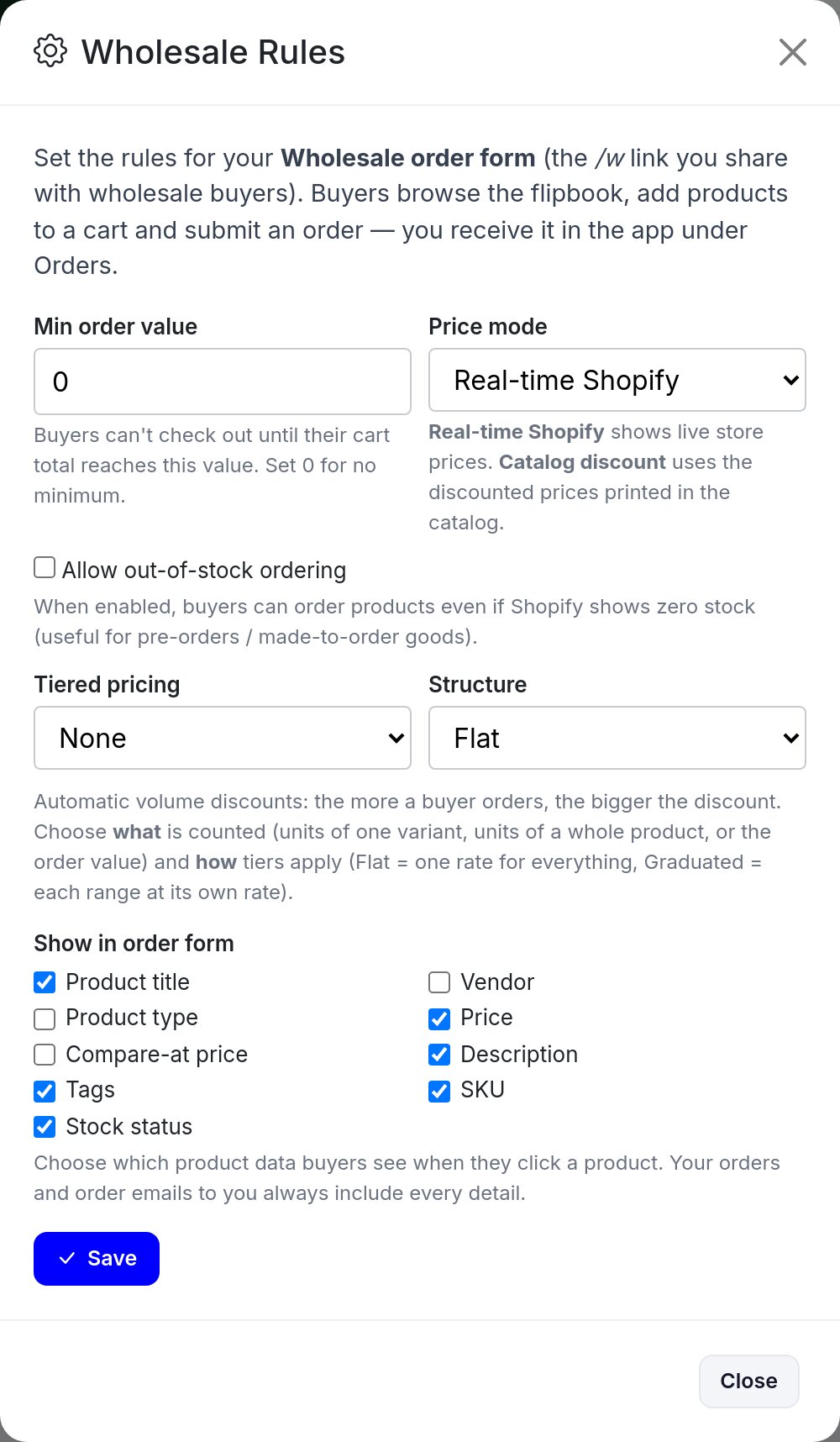
Switching the price mode works straight away, with no new PDF. When the prices themselves change, read them again (see the next section), then click Save and Generate PDF catalog. The order form charges the prices from your last saved version, while the pages show the last PDF, so doing both keeps them matching.
Metafield lines such as the case pack print on the pages, so buyers see them in the PDF and in every flipbook link. They aren't among the Show in order form details in the product window, so keep what buyers need to order on the card itself.
A case pack printed on the card is information; the order form doesn't enforce it. Quantity rules set on a Shopify B2B catalog's price list are different. When you add that B2B catalog with Add products → Bulk add, the Wholesale link enforces them, for example multiples of 6. The guide covers every Wholesale rules option.
Keep metafields up to date
When values change in Shopify, refresh the catalog from the editor's top bar. Click Sync and choose Update product data. In the Sync product data window, keep Metafields & variant table ticked to read the metafields again, and Price ticked to read metafield prices again. Then click Sync selected fields.
Sync re-reads metafields only for products whose values were already loaded. Before you generate the PDF, Refresh metafields from Shopify in the metafields dialog is still the surest way to load every product.
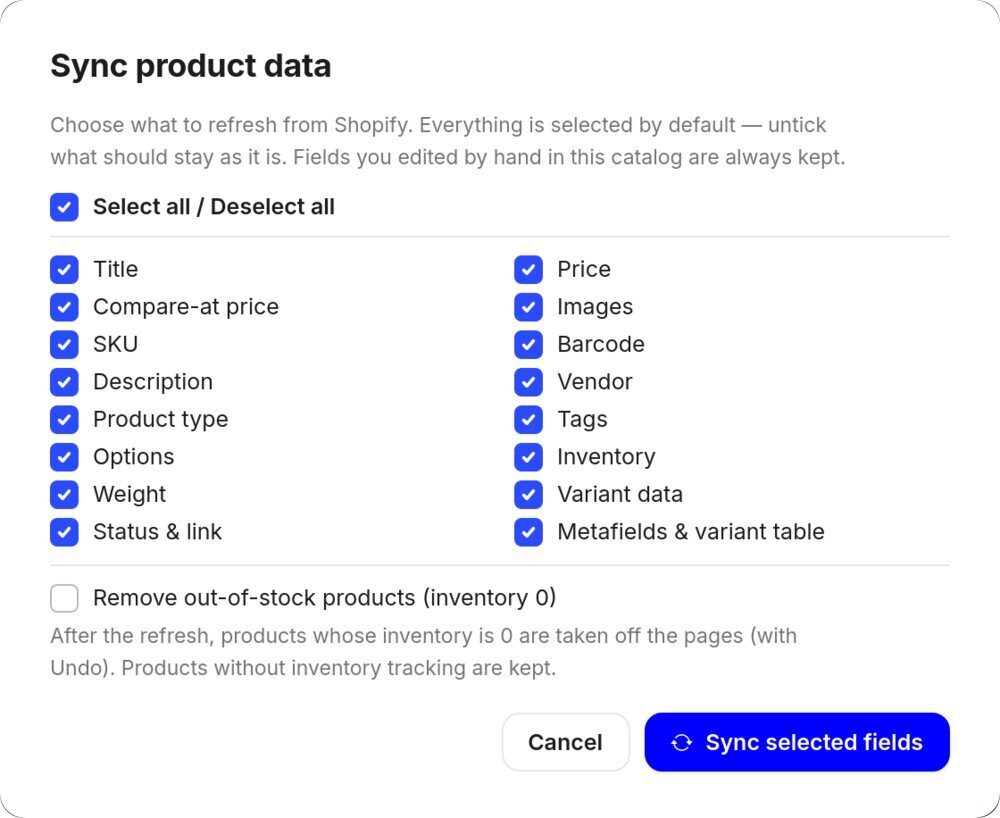
For the price mapping alone, Update all discount prices now in Discount & Tax reads the values again at any time. Products you add later pick up the metafield price by themselves.
If something doesn't show, check these in order:
- The field is on for those pages. In Product fields, pick Whole catalog and check that Metafields is ticked. Don't click the row if it already is.
- The metafield is ticked in the dialog. Click the metafield text on a card, then Choose metafields….
- The product has a value. An empty metafield prints nothing.
- It's among the first 30. EasyCatalog reads the first 30 metafields of each product, including ones other apps create.
- It's new. A metafield you just created in Shopify appears in the dialog after you save and reload the editor.
- The PDF is older than your change. Refresh the values, click Save, then Generate PDF catalog again.
Metafield values can't be edited inside EasyCatalog. Change them in Shopify, then refresh. Not on Shopify? Accounts without Shopify have no metafield fields, so put extra details in Tags, Type or the description instead.
Still building the catalog? The grid editor step by step goes from template to PDF, and wholesale catalogs for Shopify covers what a good line sheet needs.
Stuck on a setting? Click Need help? in the bar under the page to ask Fin, the AI assistant. The guide explains how Fin works.
Put your metafields to work
Turn your Shopify products, specs and wholesale prices into a catalog buyers can order from.