

If your customers already message you on WhatsApp, you are halfway to selling there. What is usually missing is the other half: one tidy place where buyers can see everything you sell, and a way to order that doesn't end in a long, half-typed chat.
This guide walks through the whole route, from your product list to a confirmed and delivered order, using a catalog link and WhatsApp ordering in EasyCatalog. You don't need a website, an online store or the WhatsApp Business API. You will need a little time to set up your products, and a way of getting paid that you already use.
What you need to sell on WhatsApp
Selling on WhatsApp comes down to four things. Most small shops already have two of them.
- A WhatsApp number. Any number with WhatsApp works, in the regular app or the WhatsApp Business app. There is no API to connect.
- A catalog of your products. One place that shows photos, prices and variants, which you can send as a link or a PDF instead of photos one by one.
- A way to take orders. An order form, or a product window with an Order on WhatsApp button, that turns a buyer's choice into a clear message.
- A way to get paid. EasyCatalog has no payment step: you agree payment and delivery with the buyer in the chat, using what you already accept, such as a bank transfer or payment on collection.
Step 1: Put your products in one catalog
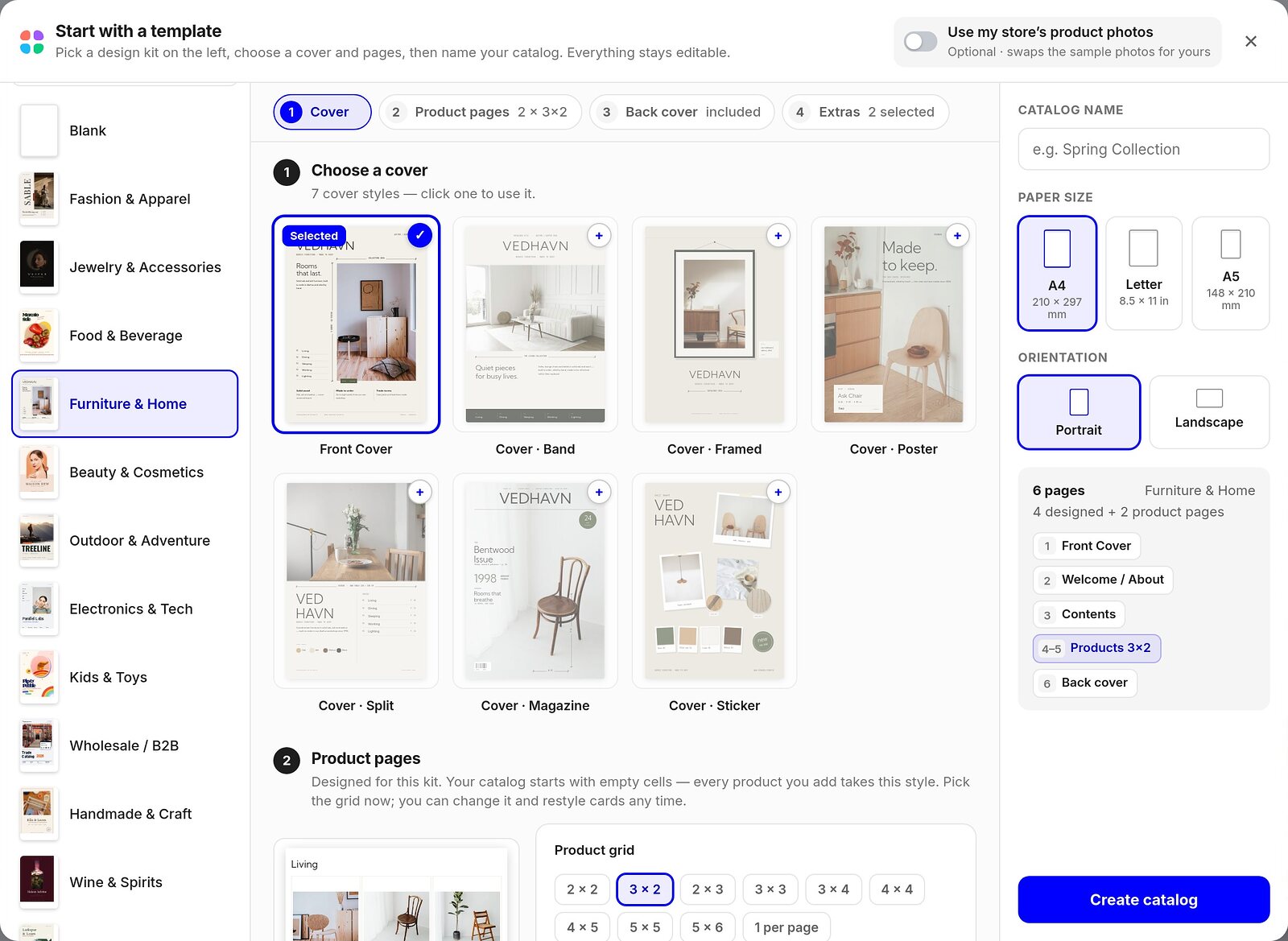
Open Create catalog and pick a template. There are 396 templates, including 31 design kits with real photography, and you can edit everything in them. You don't need an account to start: you design first, and sign up with your email or Google when you save the catalog or generate its PDF.
Then add your products. Without a Shopify store, they can come from a CSV or Excel file, a quick table you type in, a Google Sheets link, your website or a product feed, and WooCommerce can be connected after you sign up. If you sell on Shopify, install the EasyCatalog app and your catalog uses your Shopify products.
Not sure your list is ready? How to create a product catalog without an online store covers getting products out of a spreadsheet or typing them in by hand.
Step 2: Generate the PDF and get your share links
When the catalog looks right, generate its PDF. Your Catalogs page then shows the catalog's links, each with Copy link and Get QR:
- Showcase: a page-flip catalog for browsing. A shopper can tap a product to open its details, and that popup can carry an Order on WhatsApp button.
- Wholesale: the same catalog with an order form. Buyers fill a cart and check out with their details, without paying, and the order comes to you.
- PDF: the file itself, for forwarding, printing and keeping.
Shopify stores also get a Retail link, whose cart goes to the Shopify checkout.
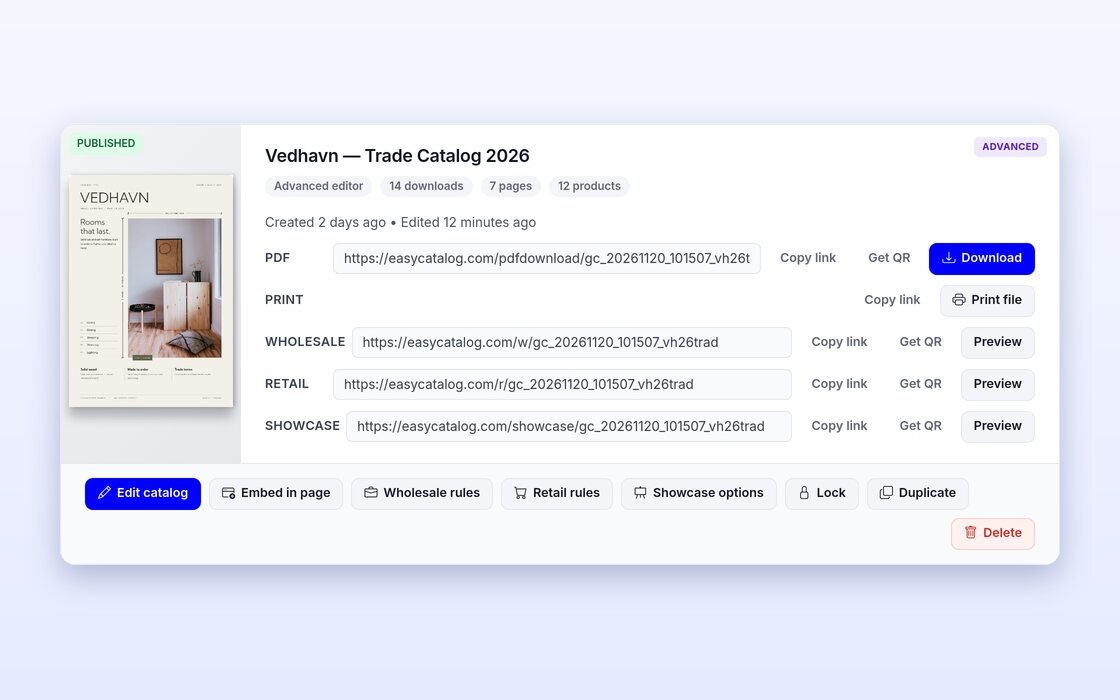
The links keep their address when you change the catalog and generate it again, and your buyers don't need an account to open them. Share links, order forms and WhatsApp ordering come with every paid plan; see pricing. For which link suits which buyer, read how to share a product catalog.
Step 3: Switch on WhatsApp ordering
WhatsApp ordering is a setting on each catalog, and the full setup guide shows every screen. In short:
- On the catalog's card, open Wholesale rules for the order form, or Showcase options for the Showcase, and tick WhatsApp ordering.
- Enter your number with the country code first. A number that starts with 0 is not accepted, because WhatsApp could not tell which country it belongs to.
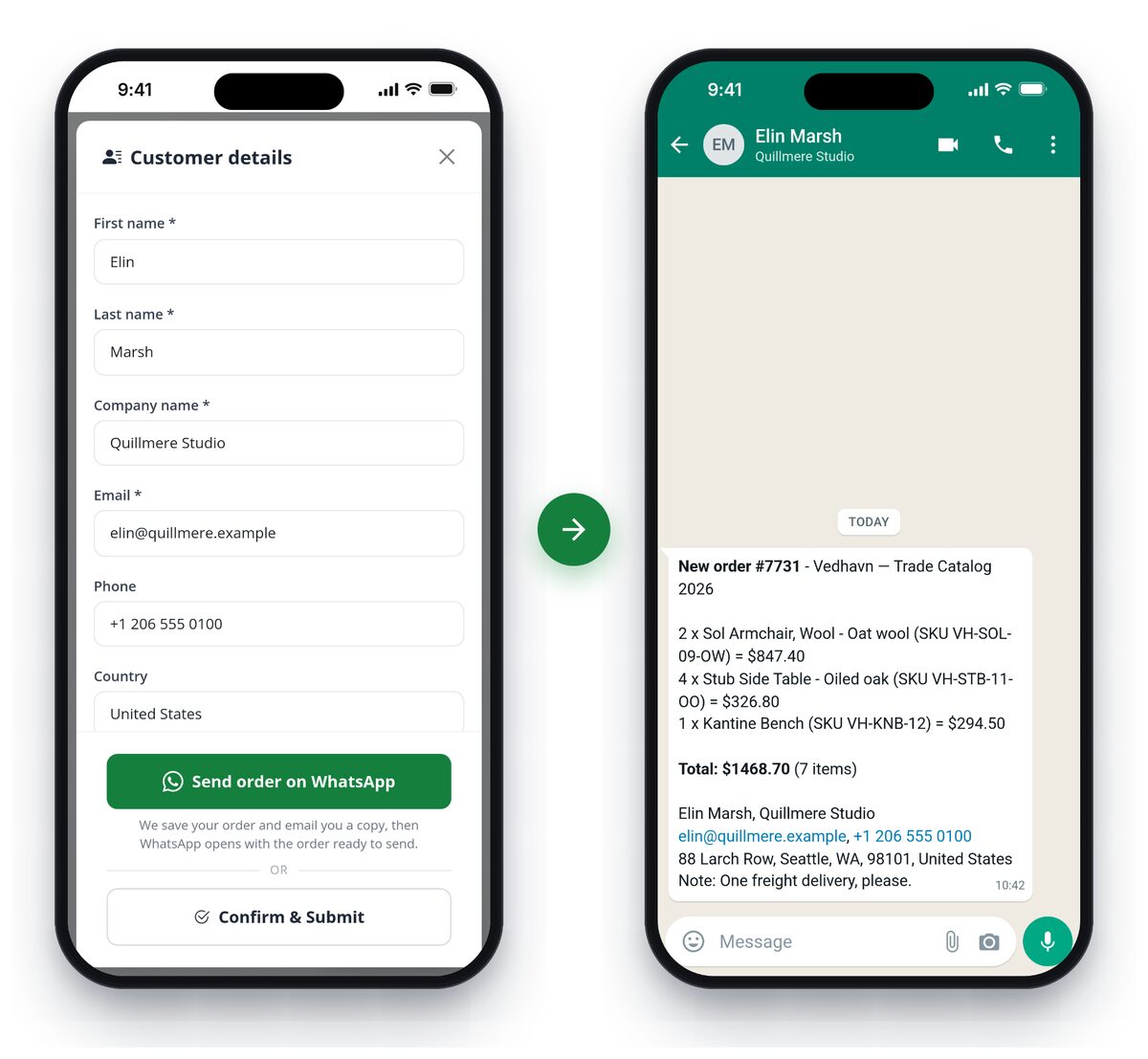
- On the order form, buyers now see a green Send order on WhatsApp button above Confirm & Submit. With Also save the order and email it ticked, which is the default, the order is also saved under Orders and emailed, and the message carries its order number.
- In the Showcase, the product popup gets a quantity box and an Order on WhatsApp button. That message names the product, variant, quantity and the catalog link, never a price, and it is not saved as an order. See Order on WhatsApp from the Showcase.

Step 4: Share the link where your buyers chat
A catalog only sells when people open it, so put the link where your buyers already talk to you:
- One-to-one chats. When a customer asks "what do you have?", send the Showcase link instead of ten photos. Send regular trade buyers the Wholesale link.
- Your status and groups. WhatsApp lets you post a link to your status and share it in groups. A short line about what's new, plus the link, is enough.
- Your other profiles. The same link works in your Instagram bio, on Facebook and in emails.
- Print. Get QR gives you a QR code for the link. Put it on a price list, a market stand, packaging or a business card, so people can scan it and order later. QR codes can also go on the catalog's own pages.
If the catalog shows trade prices, lock it with a password, so only buyers who have it can open the catalog and order.
Step 5: Confirm, get paid and deliver
When a buyer taps Send order on WhatsApp, WhatsApp opens with the order already typed out to your number, and the buyer taps Send. With the default setting, you also get the New Order email, the buyer gets a confirmation, and the order is saved under Orders before WhatsApp even opens.
From there it is a normal chat:
- Reply with the order number from the top of the message, and confirm what you have in stock. EasyCatalog does not reserve stock, so this is the moment to check.
- Agree payment and delivery: how the buyer pays, when, and whether you ship, deliver or they collect.
- Mark the order paid and fulfilled under Orders, where you can also search and filter orders and see totals.
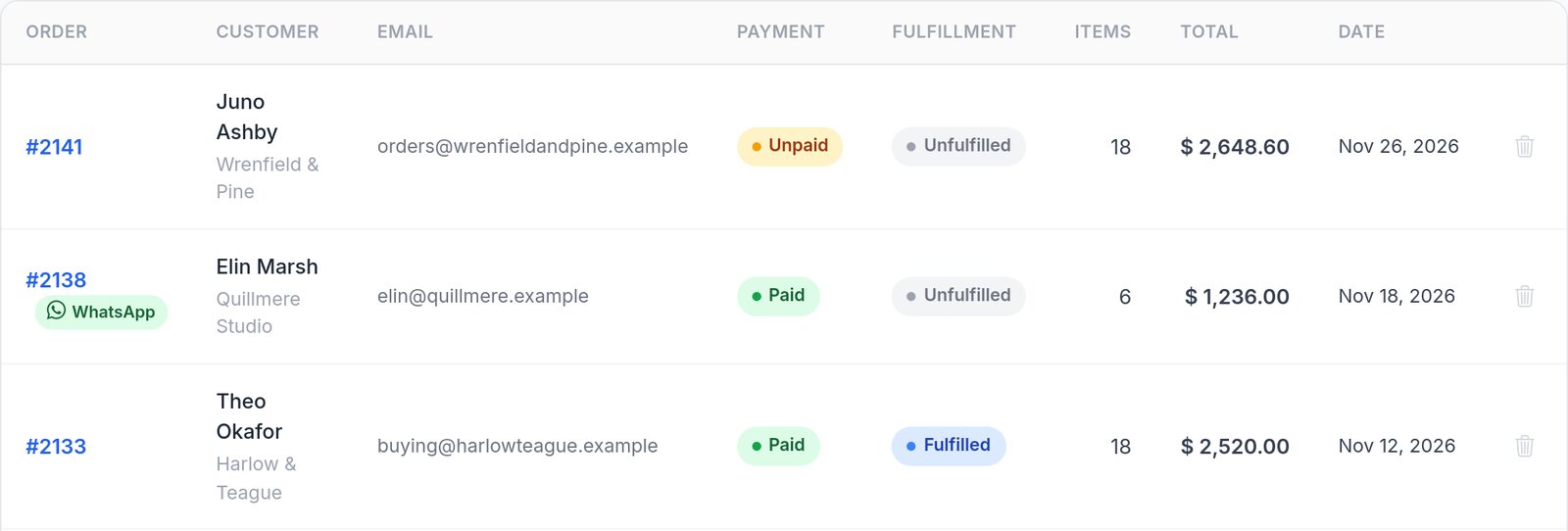
The WhatsApp badge tells you the buyer used the button. Whether they also tapped Send, you will see in WhatsApp; with the default setting, the saved order and the email are there either way.
Five mistakes that cost WhatsApp sales
- A number without the country code. A number written the national way, starting with 0, is not accepted. Use the full international number, such as +44 7700 900123.
- Typing price lists into the chat. They scroll away and go out of date. Send the link; it always shows the catalog you last generated.
- Old prices on a forwarded catalog. When prices change, edit the catalog and generate it again. The links keep their address, so everyone who has the link sees the new version.
- Trade prices in the open. Add a password to a trade catalog, or hide prices on the order form; ordering still works without them.
- Forgetting buyers who don't use WhatsApp. Confirm & Submit stays on the order form, so they can still order the usual way.
Setting it up now? The WhatsApp ordering section of the guide covers every option, and the overview on our home page shows what buyers see.
Questions about selling on WhatsApp
Do I need WhatsApp Business or the WhatsApp Business API?
No. The WhatsApp buttons use WhatsApp's standard click-to-chat links, so there is no API account to set up. Any number with WhatsApp works, in the regular app or the WhatsApp Business app. Enter it with the country code first.
Can buyers pay inside WhatsApp or EasyCatalog?
No. The order form has no payment step, and the WhatsApp message carries the order, not a payment. You agree payment and delivery with the buyer in the chat, using the payment methods you already accept.
Do I need a website to sell on WhatsApp?
No. Your catalog gets its own share links on easycatalog.com, a Showcase flipbook and a Wholesale flipbook with an order form, plus a PDF. You send those links in chats; there is no website to build.
Can I start for free?
You can design for free: open the Create catalog page, pick a template and add your products without an account. The Free plan gives you one catalog, and its PDF has every page but carries a watermark; no card is needed. Order forms, WhatsApp ordering, share links, password protection and order emails come with every paid plan.
Does it work with my Shopify store?
Yes. Shopify stores get the same WhatsApp ordering box in Wholesale rules and Showcase options. They also get a Retail link, whose cart goes to the Shopify checkout.
Start selling on WhatsApp
Make your catalog now. You don't need an account until you save it.